3.10. process section
A process-object within an ln config file is an exact description of how to start & stop a process:
on which node/host to start the process on
which environment to pass to the process
a shell-commandline to start the process OR the name of the executable plus arguments to pass
how to stop that process
whether the process is expected to stay running or to terminate on its own
which text-encoding the processes uses for its console output
whether to log the output of that process to some log file
does the process output some line to signal that its ready / finished starting up? OR does the process have a constant startup time?
are there other processes that need to be started & finished before trying to start this process?
are there other processes that need to be ready (and stay ready) before this process can be started?
are there other processes that should be started as soon as this process is ready?
A process needs to have a unique name within the ln-config file.
syntax:
PROCESS_DEFINITION := "process " + PROCESS_NAME + "\n" + PROC_SETTINGS
PROC_SETTINGS := PROC_SETTING + [ PROC_SETTING ]*
PROC_SETTING := SETTING_NAME + ": " + SETTING_VALUE + "\n"

PROCESS_NAME := EVALUATED_STRING
SETTING_NAME := STRING
SETTING_VALUE := EVALUATED_STRING | ( "[" + EVALUATED_MULTILINE_STRING + "]" )
example:
process just show date & time
node: localhost
command: /bin/date
add flags: no_error_on_successful_stop
this will add a new process named just show date & time to the ln-config. we decided we want to run this
process on node localhost which is always the same host the ln-manager is running on.
/bin/date is the absolute pathname to an executable. in this case it will simply print one line of text
and then stop itself.
this process will be started with very few environment variables set. see the environment setting.
valid SETTING_NAME’s are:
3.10.1. command
type: required, string, command line
command to execute to start this process.
command may be omitted for a process that only declares an externally
managed configured VNC display. In that case the
process is not startable by ln_manager; it only supplies a node and TCP port for
the web UI noVNC proxy.
this is usually the path-name of an executable program:
process xlogo
node: localhost
flags: forward_x11_to_gui
command: /usr/bin/xlogo
in case you make a typo like here:
command: /usr/bin/Xlogo
you will see an error message like this:
could not execve()
/usr/bin/Xlogo
errno 2: No such file or directory
arguments can also be specified:
command: /usr/bin/xlogo -bg blue
if you don’t want to specify an absolute path-name, but instead want to instruct
your operating system kernel to search for that executable, you can use the
use_execvpe-flag AND set a value for the PATH-environment-variable:
process xlogo
node: localhost
flags: forward_x11_to_gui, use_exevpe
pass_environment: PATH
command: xlogo -bg blue
this way the PATH environment variable will be passed from the ln_manager’s
environment to the environment of this xlogo-process.
Note
by using pass_environment: PATH it is assumed that the value of
the PATH variable is also useful on whatever (possibly remote)
node/computer this process is started on! for standard pathes like
/usr/bin:/usr/sbin:... this is usually correct.
sometimes it is not convenient to start a single executable with arguments, but
instead we want to provide a “command-line” which is interpreted by a shell
(like /bin/sh, which is commonly a symlink to a small POSIX shell such as
dash, or to bash on some systems).
shell-command-lines can do much more than just causing a single executable to be started. they can be used to start multiple commands, one after the other:
process xlogo
node: localhost
flags: forward_x11_to_gui, start_in_shell
command: echo hello world; xlogo -bg blue
this ; (semicolon) is one of the special characters that can be used in
shell-command-lines – in this case first echo hello world is executed by
the shell, then xlogo -bg blue (search for compound commands in man
bash).
3.10.2. vnc_session
type: optional, string
Marks this process as a configured VNC display for the browser web UI. The
value is the user-facing name shown in the X display menu. A configured VNC
display must also set vnc_port and a concrete node name;
<gui_ip> is not valid for this feature. Configured VNC session names must
be unique.
When the process has a normal command, selecting this VNC display in the
web UI requests the process to start first. Normal process dependencies apply,
including depends_on and start_before. The
noVNC page waits until the process
has reached its configured ready state.
For LN-managed TigerVNC Xvnc sessions, prefer built-in-internal configured vncserver template. If you write a custom Xvnc command instead,
ready_regex: Listening for VNC connections is a useful readiness marker.
TigerVNC also has an automatic authentication blacklist; use
-UseBlacklist=0 for LN-managed browser sessions unless that blacklist is
explicitly desired.
When the process has no command, ln_manager treats it as an externally
managed VNC server. It will not try to start or stop anything; it only forwards
the browser noVNC connection to
localhost:<vnc_port> on the configured node. This is useful for VNC
servers started by system services, hardware vendor tooling, or a separate
operator workflow. Such declarations implicitly behave like no_state_led
and disable_stop for manager UIs; users do not need to set those flags
explicitly.
For a hardware-backed OpenGL/CUDA desktop, run a VNC server such as x11vnc
on top of a real X server that already uses the graphics hardware. Xvnc
servers are useful for additional remote sessions and can be started by
ln_manager, but they typically do not provide a hardware GPU/OpenGL context.
Processes can also send their GUI windows to a configured VNC session with forward_x11_to_vnc. For a real X server, make sure the Unix user running the started process is allowed to connect to that display. A common operator-side setup on the X server host is:
DISPLAY=:0 xhost +si:localuser:USERNAME
Replace USERNAME with the Unix user that should be allowed to open windows
on the display. When the process runs on another LN node and ln_manager has to
forward to the X server’s Unix socket, the X server may see the daemon-side Unix
user instead; use a matching X authority or xhost setup for that deployment.
Examples:
process remote xvnc desktop
use_template: internal configured vncserver template("remote Xvnc desktop", "80", "5980")
node: vnc_node
depends_on: gpu setup

process externally started gpu_node x11vnc
node: gpu_node
vnc_session: gpu_node hardware X11 desktop
vnc_port: 5900
vnc_display: 0

process paraview on gpu_node hardware X11 desktop
node: gpu_node
command: paraview
forward_x11_to_vnc: gpu_node hardware X11 desktop
3.10.3. vnc_port
type: optional, integer TCP port
TCP port where the configured VNC server listens on localhost of the process
node. This is usually 5900 + DISPLAY_NUMBER. vnc_port is only valid
together with vnc_session.
3.10.4. vnc_display
type: optional, integer X11 display number
X11 display number behind the configured VNC server. This is used when another process selects the configured VNC session with forward_x11_to_vnc.
If omitted, ln_manager derives it as vnc_port - 5900. Specify it explicitly
when the VNC TCP port does not match the X11 display number, for example when
x11vnc serves a real :0 X server on a non-default VNC TCP port.
vnc_display accepts values such as 0 or :0; the host comes from the
configured node and must not be included here.
3.10.5. forward_x11_to_vnc
type: optional, configured VNC session name
Send this process’ X11 GUI windows to the configured VNC session named by
vnc_session. This is mutually exclusive with the forward_x11 and
forward_x11_to_gui flags.
When the configured VNC session is command-backed, ln_manager requests that VNC process to start first and treats it as an implicit dependency. When the configured VNC session is externally managed, ln_manager assumes the X server and VNC server are already running.
If the GUI process runs on the same node as the configured VNC session,
ln_manager sets DISPLAY=:<vnc_display> directly. If it runs on another
node, ln_manager creates an LN TCP forwarding to the X server Unix socket
/tmp/.X11-unix/X<vnc_display> and sets DISPLAY to the local forwarded
display.
note that here we don’t need to specify the absolute path-name for xlogo as
the shell will always use an execvpe-equivalent mechanism to find executable
programs.
note also that we don’t have to provide a value for the
PATH-environment variable here: if not specified, the shell will look for
executables in a minimal set of standard locations like /usr/local/bin, /usr/bin…
for non-standard tools you should not rely on this implicitely defined list of directories which are searched. you should either explicitely specify an absolute path name of your executable, or explicitely specify a search-path like shown in this example:
process xlogo
node: localhost
flags: forward_x11_to_gui, start_in_shell
add environment: PATH=/path/to/my-executables:/path/to/other/executables:...
command: echo hello world; my-special-program
this would allow the shell to find your
/path/to/my-executables/my-special-program executable. the shell will output
/bin/sh: my-special-program: command not found if an executable or
internal-command can’t be found.
3.10.6. alt_command NAME
type: optional, string, named alternate command line
adds an additional named command line for this process. command: ... is
always the primary command and implicitly gets the reserved name default.
The syntax is:
alt_command SHORT_NAME: COMMAND_LINE
Example:
template typical shell commands
alt_command bash: /usr/bin/env bash -i
alt_command ps: /bin/ps -Afl

process alternate command line
node: localhost
command: echo default command
alt_command verbose: echo this is the verbose command
alt_command silent: echo silent
use_template: typical shell commands
The order of alt_command lines is preserved, including commands that come
from use_template: ... expansions.
In the ln_manager GUI, processes with alternate commands get an additional command-selection combobox in the process view and in the detached process output window. The user can select one of the configured names there, and the command entry field will show the corresponding command line.
The command entry stays editable. User edits are remembered per command name, so
changing the text for verbose does not modify default or other
alternate commands. When the process is started, ln_manager uses the currently
selected command name and its edited value if the user changed it.
The ln_manager console can select an alternate command for a start request with
start -c SHORT_NAME PROCESS_NAME or start --alt-command SHORT_NAME PROCESS_NAME.
3.10.7. node
type: required, string
Name of the node where this process shall be started.
For simple local examples this is often localhost. In larger or portable
setups, prefer a logical node name from node_map section, for example
node: robot or node: nodeA. The node_map section then decides which
physical host that logical node currently means.
If no node_map entry exists for the value, ln_manager treats it directly as
a host name. An IP address is also a valid host name, but symbolic names are
usually easier to maintain.
3.10.8. change_user_to
type: optional, string, username or username:group1[:group2…]
This setting only works when the ln_daemon itself is running with root
rights. In that case it can be used to switch the started process to another
user. If change_user_to is requested for a daemon that is not running as
root, the daemon prints a WARNING: message to stderr and continues normal
startup without changing the user, effective group, or supplementary groups.
The optional group name after : selects the effective group of the started
process. Additional group names after that are added to the process’
supplementary groups. If no group is specified, the selected user’s primary
group from the passwd database is used as the effective group.
Examples:
change_user_to: ln_user
change_user_to: ln_user:robotics
change_user_to: ln_user:robotics:dialout:video
On platforms where this is supported and when ln_daemon is running with
root rights, ln_daemon also initializes the supplementary groups configured
for the selected user before dropping to that user. The user’s primary group
from the passwd database is used when initializing this group list. If groups
were specified explicitly, the first group overrides the effective group and all
configured groups are included in the supplementary group list, while the user’s
normal supplementary groups are still initialized.
Multiple explicitly configured groups require daemon protocol version 40. When ln_manager starts a process through an older daemon, it logs a warning and sends only the first configured group to that daemon.
3.10.9. environment
type: list of strings
if nothing is specified, a process will be started in a nearly empty environment with only these variables set:
LN_MANAGERyou should not manually specify this value! ln-manager will compute this value and will also automatically create needed tcp-forwardings if manager and client are not within the same IP-network.
LN_PROGRAM_NAMEthis will contain the unique
PROCESS_NAME. the ln-client library will use this value to suggest a unique client-name to the ln-manager name. ln-manager will only set this variable if it is not already explicitely specified in the process-definition.LN_MESSAGE_DEFINITION_DIRSthis will contain all search pathes for message definitions that the ln-manager uses (this is only useful if manager and this process share a common filesystem layout). this environment variable is only used by the The ln-generate Tool: creating interfaces for the C++ API. normal ln-clients do not read it. if already specified in the process-definition, ln-manager will append this value to the end where it should not do any harm.
LD_LIBRARY_PATHwill always include the path to
libln.sowhere ln-manager found it (this is only useful if manager and this process share a common filesystem layout). if already specified in the process-definition, ln-manager will append its libln-path to the end where it should not do any harm.TERMln-manager will set this to
xtermto tell the started process which terminal control sequences to use for (curses-like) console UI’s. (ln-manager uses VTE-widgets to display the process output, VTE supports most of xterm’s control sequences) ln-manager will only set this variable if it is not already explicitely specified in the process-definition.
arbitrary additional variables can be specified in the process-definition. example:
process print env vars
node: localhost
command: /usr/bin/printenv
add flags: no_error_on_successful_stop
add environment: TERM=vt100
add environment: LICENSE_PATH=/opt/expensive-license
add environment: LN_PROGRAM_NAME=printenv
when this process is run, it should output something similar to this:
TERM=vt100
LICENSE_PATH=/opt/expensive-license
LN_PROGRAM_NAME=printenv
LD_LIBRARY_PATH=/path/to/ln_manager/libln
LN_MESSAGE_DEFINITION_DIRS=/path/to/ln_msg_def:...
LN_MANAGER=127.0.0.1:3069
in this case LN_PROGRAM_NAME and TERM was set explicitely in the process-definition so ln-manager did
not change their values.
LICENSE_PATH is just an example of some arbitrary environment variable added to the process environment.
Note
please notice that environment’s type is list of strings, as described in the following:
you can set this list completely at once (multiple values separated by ,):
process print env vars
node: localhost
command: /usr/bin/printenv
add flags: no_error_on_successful_stop
environment: TERM=vt100, LICENSE_PATH=/opt/expensive-license, LN_PROGRAM_NAME=printenv
this can also be spread across multiple lines:
process print env vars
#...
environment: [
   TERM=vt100,
   LICENSE_PATH=/opt/expensive-license,
   LN_PROGRAM_NAME=printenv
]
(the trailing , is needed!)
be careful to not accidentally set the environment list multiple times! only the last setting will have an effect:
process print env vars
#...
environment: [
   LICENSE_PATH=/opt/expensive-license,
   NAME=name
]
environment: SOME=value, OTHER=1
this will result in these environment variables:
SOME=value
OTHER=1
...
the is no LICENSE_PATH or NAME variable set! only the last setting of environment: VARS has effect!
especially when using templates it is often convenient to just add to the list of already set environment variables, instead of overwriting:
process print env vars
#...
add environment: TERM=vt100
add environment: LICENSE_PATH=/opt/expensive-license
add environment: LN_PROGRAM_NAME=printenv
this is usually the preferred way of adding environment variables.
for certain environment variables like PATH, LD_LIBRARY_PATH, PYTHONPATH it is often convenient to
just append something to an already set value.
this can be done like this:
process print env vars
#...
append environment PATH: :/usr/bin
append environment PATH: :/sbin
append environment PATH: :/usr/X11/bin:/usr/sbin
append environment LD_LIBRARY_PATH: :/usr/lib
add environment: LN_PROGRAM_NAME=printenv
this will result in these environment variables:
PATH=:/usr/bin:/sbin:/usr/X11/bin:/usr/sbin
LD_LIBRARY_PATH=/usr/lib:/path/to/ln_manager/libln
LN_PROGRAM_NAME=printenv
for bash-like shells the unnecessary leading : in PATH does no harm.
3.10.10. pass_environment
type: list of strings, names of environment variables
The environment variables listed here are read from the managers environment and passed unmodified to the environment of the process.
Entries are matched using shell-style wildcards via Python’s fnmatch
implementation, so patterns like DISPLAY* or LD_* are allowed.
This is mainly useful for variables whose values are only known at manager startup time, or which should intentionally be inherited from the manager process instead of being hard-coded in the ln-config.
3.10.11. term_signal
Defines signal that causes termination.
type: string of [“SIG”] [ “INT” “TERM” …] or int signal, default: SIGTERM
When ln_manager stops a process, ln_daemon sends this signal to the process group of the started program.
Both signal names and numbers are accepted. Examples:
term_signal: TERM
term_signal: SIGINT
term_signal: 15
3.10.12. term_timeout
type: float, time in seconds
After sending term_signal, ln_daemon waits this long for the process to
terminate on its own. If it is still running after that timeout, ln_daemon will
send SIGKILL.
Increase this value for programs that need time to flush buffers, write files, or shut down external devices cleanly.
3.10.13. ready_regex
type: string, regular expression
The process is considered ready as soon as one output line on stdout or
stderr matches this regular expression.
Matching is done line-by-line on the process output, using the process’
output_encoding. Carriage returns are normalized to newlines before
matching.
This is usually the most precise way to model startup completion for servers or interactive tools that print a well-defined “ready” message.
3.10.14. ready_time
type: float, time in seconds
Alternative to ready_regex when the process has no reliable textual startup
message.
After the process has been started successfully, ln_manager waits for the given
time and then marks the process as ready automatically.
3.10.15. policy
type: string of [ “SCHED_FIFO” “SCHED_RR” … ]
scheduling policy. supported values depend on the node’s operating system.
Accepted values are either integers understood by ln_daemon, or symbolic names
like SCHED_FIFO, SCHED_RR or SCHED_OTHER. Supported names depend on
the target operating system and architecture.
This setting is applied together with priority.
3.10.16. priority
type: int
scheduling priority. supported values depend on selected policy and the node’s
operating system. for linux policy FIFO valid values are 0 .. 99 where
99 is the highest possible priority.
3.10.17. affinity
type: list of int
List of CPU ids (zero based) where this process is allowed to run on.
Examples:
affinity: 0,1
affinity: [0, 1, 3]
Internally this is converted to a CPU affinity bitmask before it is sent to the daemon.
3.10.18. nice
type: int
Run command with an adjusted niceness, which affects process scheduling. Niceness values range from -20 (most favorable to the process) to 19 (least favorable to the process).
(compare man 1p nice, new in version 2.5.4)
3.10.19. warning_regex
type: string, regular expression
Whenever a line of process output matches this regular expression, ln_manager records a process warning and notifies the GUI.
Combine this with warning_msg to show a stable, user-friendly explanation
instead of only the raw matching line. Use the no_warning_window flag if
you want the warning to be logged but do not want a popup dialog.
3.10.20. warning_msg
type: string
Optional message shown when warning_regex matches.
If omitted, the matching output line itself is used as the warning text. If
specified, ln_manager shows warning_msg and appends the matching line in
parentheses.
3.10.21. documentation
type: string, URL
when provided, ln_manager GUI will display an additional button with label
“documentation” for this process. when it is pressed the given URL will be
passed to the xdg-open-command which can for example open a web-browser
showing the page at that URL.
example:
process show pwd
flags: start_in_shell
node: localhost
command: pwd
documentation: https://man7.org/linux/man-pages/man1/pwd.1.html
when user presses this documentation button a browser should show that
pwd man-page.
3.10.22. use_template
type: string, name of template
templates can help to avoid repetitions in your config files.
example:
process echoA
add environment: HOME=%(CURDIR)/home
flags: start_in_shell, no_error_on_successful_stop
command: echo "this is process A, with HOME=$HOME"
node: localhost

process echoB
add environment: HOME=%(CURDIR)/home
flags: start_in_shell, no_error_on_successful_stop
command: echo "this is process B, with HOME=$HOME"
node: localhost
using templates, this can be reduced to:
template local shell command
add environment: HOME=%(CURDIR)/home
flags: start_in_shell, no_error_on_successful_stop
node: localhost

process echoA
use_template: local shell command
command: echo "this is process A, with HOME=$HOME"

process echoB
use_template: local shell command
command: echo "this is process B, with HOME=$HOME"
the ln_manager will produce the exact same two processes for these two examples!
you can imagine that the directives from the named template are directly
inserted at this use_template:-point!
templates are used in the order you name them – if the same directive is used in multiple templates for the same process, only the last one will have effect:
DELIBERATELY BAD EXAMPLE
template local shell command
add environment: HOME=%(CURDIR)/home
node: localhost
flags: start_in_shell

template no error on stop
flags: no_error_on_successful_stop

process echoA
use_template: local shell command
use_template: no error on stop
command: echo "this is process A, with HOME=$HOME"
this will probably not behave as intended, after template-instantiation it is equivalent to:
DELIBERATELY BAD EXAMPLE
process echoA
add environment: HOME=%(CURDIR)/home
node: localhost
flags: start_in_shell
flags: no_error_on_successful_stop
command: echo "this is process A, with HOME=$HOME"
and with that the flags: list will be set to only
no_error_on_successful_stop.
this example should be fixed to look like this:
template local shell command
add environment: HOME=%(CURDIR)/home
node: localhost
add flags: start_in_shell

template no error on stop
add flags: no_error_on_successful_stop

process echoA
use_template: local shell command
use_template: no error on stop
command: echo "this is process A, with HOME=$HOME"
in this case the local shell command template will add start_in_shell to
the flags-list and the no error on stop-template will add
no_error_on_successful_stop. (the important thing here is the use of add
before naming the flags-list)
a template can also provide “parameters” which can be used via the
%(parameter-name)-syntax:
template local shell(cmd)
add environment: HOME=%(CURDIR)/home
node: localhost
add flags: start_in_shell
command: %(cmd)

template echo(message)
use_template: local shell("echo %(message)")

process echoA
use_template: echo("this is process A, with HOME=$HOME")
there the first template has a template-parameter named cmd, which is used
in the value of the command:-directive.
the echo-template has a parameter named message which is used when
instantiating the local shell template.
these parameters are positional parameters, they have to be specified at
“call-site”(-> use_template:-site) in the same order as they are given when the template is defined.
this also demonstrates that templates itself can make use of other templates.
here an example showing how multiple parameters can be used:
template shell with home(home, cmd)
add environment: HOME=%(CURDIR)/%(home)
node: localhost
add flags: start_in_shell
add flags: no_error_on_successful_stop
command: %(cmd)

process echoA
use_template: shell with home("home_A", "echo this is process A, with HOME=$HOME")
3.10.23. change_directory
type: string, directory
this will change the current working directory of this process. if not specified
/tmp will be used as working directory.
example:
process default process
node: localhost
flags: start_in_shell
command: pwd
should output /tmp as current working directory, while
process in local dir
node: localhost
flags: start_in_shell
command: pwd
change_directory: %(CURDIR)
will change the current working directory to be the directory of this config file!
3.10.24. flags
type: list of strings
This is the set of boolean process options.
Like all list-valued settings, flags: replaces the whole list while
add flags: appends to the existing list. The latter is usually preferable
when working with templates.
valid process flags:
- forward_x11
With this flag the ln_manager tries to provide all necessary information such that the process can open a connection (open windows) on the same X-Server that the manager process itself uses.
For new interactive GUI processes, forward_x11_to_gui is often the better starting point: it shows the window on the display attached to the operator who sent the start request, instead of always targeting the manager process’ own display. Use
forward_x11when that manager display is explicitly the desired target.This sets all necessary environment variables and might even establish tcp-tunnels.
This is equivalent to ssh’s ForwardX11 option but without encryption!
Environment variables overwritten are: DISPLAY and XAUTHORITY. This is all that is needed for a simple X11 connection.
For background on
DISPLAY,XAUTHORITY, X11 cookies, and how ln_manager forwards X11 connections, see X11 Connections and Authentication.See also forward_x11_to_gui when windows should appear on the display of the GUI session that triggered the start request instead of the manager process’ own display.
If the manager was started without an X11 environment, for example without a
DISPLAYvariable, a process started from the browser web UI can use that web user’s private VNC-backed X display instead. In that situationforward_x11intentionally behaves like forward_x11_to_gui for the web request, so existing configs can still show their windows. Disable this fallback instance-wide with thedisable_forward_x11_to_gui_fallbackinstance flag, or per process with disable_forward_x11_to_gui_fallback. For the full headless web UI workflow, see Headless Browser Operation With X Clients.
- disable_forward_x11_to_gui_fallback
disables the web-UI fallback for this process where forward_x11 uses the authenticated user’s private web X display if the manager itself has no
DISPLAYenvironment variable.
- forward_x11_to_gui
similar to forward_x11, but the X11 connection is forwarded to the GUI session that triggered the start request. If there is no separate GUI session context, it falls back to the manager’s own display and behaves like forward_x11.
This is usually the recommended flag for GUI tools that an operator starts from ln_manager, because the resulting window appears close to that operator: on the built-in GTK display, the remote GUI display, or the user’s private browser X display.
The GUI session can be the built-in GTK GUI, a remote GUI connection via
ln_manager --connect X:Y, or the browser web UI. This flag is meant for cases where windows should appear on the display attached to the requester instead of the display attached to the manager process.If the GUI session is on the target process host, ln_manager passes that GUI’s
DISPLAYandXAUTHORITYvalues to the process. If the GUI session is on a different host, ln_manager may create forwarding/tunneling and install the GUI session’s X11 cookie on the target host.For background on
DISPLAY,XAUTHORITY, X11 cookies, and how ln_manager forwards X11 connections, see X11 Connections and Authentication.This is useful when the manager process runs on one machine but a user opens the GUI remotely and wants X11 applications to appear on that user’s display.
For the browser web UI, ln_manager creates one private VNC-backed X display per authenticated web-UI user on demand. The
X displaybutton opens the noVNC viewer for that display. Processes started by that web user withforward_x11_to_guireceive the privateDISPLAYvalue instead of the manager process’ own environment. See Headless Browser Operation With X Clients for the remote/headless workflow and vncserver_process_template for customization.- start_in_shell
the most efficient way to start a process is via operating system-specific system calls. this also guarantees the most exact control about the environment the process is started in.
but sometimes you want to execute the command-line via a shell. this is done when this flags is specified. the default system shell will be used to execute the command-line (
/bin/sh).this allows to execute internal shell-commands which have no own program-binary to start (like bash’s
ulimit,if,;…)With
start_in_shell, the process tracked by ln_manager is the wrapper shell, not necessarily the final program named in the shell command. When a user stops the process, ln_daemon sendsterm_signalto the wrapper shell’s process group. This normally also reaches ordinary foreground child processes in that group, but ln_daemon considers the LN process stopped as soon as the wrapper shell exits. If a child process catches or ignoresSIGTERM/SIGHUPand keeps running, the shell can be gone while that child continues as an orphaned process. In that case ln_daemon may not send the laterSIGKILLescalation to the child, because the tracked shell process has already terminated.For long-running programs, prefer starting the program directly without
start_in_shellwhenever possible. If a shell really is needed for setup, make the final long-running command replace the shell withexec, for example:flags: start_in_shell command: export SOME_SETTING=1; exec /path/to/my-program --option
Avoid starting long-running background jobs from a shell command unless they have their own explicit lifecycle management. Otherwise the LN process state may describe only the wrapper shell and not all processes created by it.
- use_execvpe
when
start_in_shellis not used, ln_daemon normally starts the executable exactly as specified incommand. Withuse_execvpeit instead uses libc’s execvpe() syscall which searches the executable via the process’PATHenvironment variable.This is only useful for commands without a
/in the executable name, for examplepython3 my_script.py.- no_pty
when this flag is specified, no pseudo-terminal will be allocated for this process – which is more resource efficient. BUT: typical standard-C libraries change their behaviour depending on whether they are used within a terminal or not. for example: they switch their stdout-buffering from line-based to page-based - which means that the process-output will only be visible when a complete memory-page is filled (~4kB). On windows there is nothing comparable to a pseudo-terminal (the win32-console window is the only available terminal).
- use_vte
when this flag is given a full-featured terminal-emulator-widget is used to display the process output within the ln_manager-gui. this will only have an effect when the python-vte package is available on the manager-gui-host. this terminal widget allows processes to display colors and advanced console-based user interfaces (like emacs or vim).
- no_vte
disable the VTE-based terminal widget for this process even if VTE is available and enabled globally. The plain text output widget will be used instead.
- remove_color_codes
you can remove color-escape-sequences from process output if you are not interested in having colored process-output and/or you don’t use the
use_vteflag.- no_state_led
this flag avoids the display of a square (red, yellow, green) indicator box for this process.
- no_warning_window
as soon as you specify a
warning_regexa dialog-window will pop-up every time thatwarning_regexmatches a process-output line. by using this flag the display of the warning-dialog can be disabled.- no_error_on_stop
when a process terminates on its own - without the user requesting it - its interpreted as an error if this flag is not specified
- no_error_on_successful_stop
process is allowed to stop on its own. this is not considered an error as long as the process returns with return value 0.
- disable_stop
this flag disabled the the stop-button in the manager gui.
- user_stop_is_successful_stop
this is useful in combination with start_on_successful_stop directive.
- set_user_and_home
add
USERandHOMEto the started process from values reported by the daemon on the target host.This is especially useful for processes that expect a meaningful home directory, for example GUI applications, tools that read
~/.config, or programs that create cache files below$HOME.- no_ln_ld_library_path
by default ln_manager ensures that
LD_LIBRARY_PATHcontains the path to the LN runtime libraries it is using. This flag disables that automatic addition.Use this if the target process must run with a fully custom library search path or if manager and target do not share a compatible filesystem layout.
- blocking_output
request blocking handling of process output inside ln_daemon.
Without this flag ln_daemon may keep reading process output even when the manager-side output buffer is already full. With this flag the daemon instead applies backpressure and waits for buffer space before consuming more output. This is useful for interactive processes or tests where output loss or skipping is unacceptable.
- no_skip_display
disable ln_manager’s display-skipping optimization for very chatty processes.
Normally the GUI may skip parts of already queued output if too much data is buffered. With this flag all output should stay visible, at the cost of more UI work and memory pressure.
- io_scripts_dont_enforce_blocking_output
processes with I/O scripts automatically enable
blocking_outputandno_skip_displayso the scripts can reliably react to the full output stream. This flag disables that automatic enforcement.- dont_stop_dependent_procs
when stopping a process, ln_manager normally first stops dependent processes that list it in
depends_on_restart. With this flag that automatic stop propagation is disabled for this process.- dont_translate_backspace_to_delete
when typing into a process terminal from the GUI, ln_manager normally translates the backspace key from
^HtoDEL. This flag disables that translation and forwards the raw backspace character unchanged.- disable_gdb_run
for processes started with
start_tool: gdbthe GUI can automatically send aruncommand when the process is started. This flag disables that convenience behavior.- disable_gdb_rerun
when such a gdb-backed process is already running and the user starts it again, the GUI normally tries to send a gdb rerun sequence instead of restarting gdb itself. This flag disables that rerun shortcut.
- no_default_templates
do not apply globally configured default process templates to this process.
- no_host_default_templates
do not apply host-specific default process templates to this process. Global default templates are still applied unless
no_default_templatesis also set.
3.10.25. depends_on
type: list of strings, process- or state names
all the processes listed here need to be in ready state (or started if they don’t have a ready_regex or
ready_time) before this process can be started. if you try to start this process, the ln_manager will make sure to
start all of these dependencies.
if any of these dependencies terminate later, this process gets a error-flag to signal to the user that it probably
can no longer function as expected. this error disappears as soon as all dependencies are ready again.
3.10.26. depends_on_restart
type: list of strings, process- or state names
similar as depends_on but here a dependency that terminates will permanently set an error-flag for this
process. this signals to the user that this process needs to be restarted before it can function again.
if a user deliberately stops one of these dependencies, then the ln_manager will first stop this process, as it can be
of no more use when configured like this.
3.10.27. start_before
type: list of strings, process names
before this process starts, all listed processes will be started and waited upon until they stop successfully.
these other process all need to use the no_error_on_successful_stop-flag.
3.10.28. start_on_ready
type: list of strings, process- or state names
the processes or states listed here will be started as soon as this process reaches its ready state. They do not need to keep running for the whole lifespan of this process and are not needed for this process to be in a valid state.
Use-cases include starting small shell-scripts or other helper programs every time when this process is
started. It is advisable to specify the no_error_on_stop-flag for processes listed here!
since version 0.2.5
3.10.29. start_on_successful_stop
type: list of strings, process names
the processes listed here will be started as soon as this process stopped successfully. For this to work you also
need to use the flag no_error_on_successful_stop. these are NOT started when the user manually stops this process.
if you want to have these processes also started when a user manually stops this process, then you have to use flag
user_stop_is_successful_stop (which is new in version 2.5.3).
since version 1.1.6
3.10.30. provides
type: list or strings
Declare that this process can provide a named service or topic on demand.
This integrates with ln_manager’s provider lookup: if something requests a provider for that name and no running client currently provides it, ln_manager can start the configured process automatically.
Each entry is either just a name or NAME:PRIORITY:
provides: camera/image_raw
provides: my/service:10
If multiple configured processes or states provide the same name, the one with the highest priority wins. When no explicit priority is given, priorities are assigned in config-file order.
3.10.31. output_encoding
type: string, default: utf-8
what text encoding does this process use for its otuput to stdout / stderr.
3.10.32. output_logfile
type: string
a filename where ln_manager should write all collected stdout/stderr from that
process.
use output_logfile_size_limit to limit the size of that file and
output_logfile_keep_count to set how many files to keep when that size limit
is reached.
3.10.33. output_logfile_size_limit
type: size, default: 10MB
max size in bytes of the output_logfile. you can also use common post-fixes
like MB or GB. if the logfile reaches this size-limit, a new logfile
will be started. use output_logfile_keep_count to set how many log files to
keep around before starting to delete them.
3.10.34. output_logfile_keep_count
type: integer, default: 2
number of log files to keep if output_logfile_size_limit is set.
older log files will get a timestamp in the form of .YYYYmmdd_HHMMSS attached
to their filenames. the timestamp is of the moment when a new log file was started.
3.10.35. output_buffer_size
type: integer, default: 100kB
buffer size in bytes for ln_daemon for collecting output from this
process. output needs to be sent from daemon to ln_manager. increase this buffer
size if the network connection towards the manager is too slow or your process
generates lots of output! (e.g. more that 100kB per max_output_frequency)
3.10.36. max_output_lines
type: int, number of lines, default: 1000
number of lines in ln_manager’s VTE-widgets (terminal widget showing process output) scroll-back buffer.
3.10.37. max_output_frequency
type: float, frequency in Hz, default: 10Hz
try to batch process output to send updates towards ln_manager only at this rate. faster process output updates will be sent if fill-level of output_buffer` reaches 75%.
3.10.38. add_io_script
this adds an I/O script to this process. I/O scripts can be used to send pre-defined text-input to this process if it is started/ready.
this can be useful for “uncooperative” or foreign processes that provide no LN-service-interface, but react on text input. examples include any remote-shells (like an interactive bash shell via ssh, a serial terminal to a linux text console or any telnet connection) or programs which provide a text-based / terminal-based text-interface.
I/O scripts have a per-process unique name (given by the first #-comment
line in the script itself).
here an example I/O script to login on a linux serial console and execute a command:
process ifconfig via serial console
node: localhost
command: /home/schm_fl/foreign_packages/picocom/2.1/sled11-x86_64-gcc4.x/picocom -b 115200 /dev/ttyUSB0
ready_regex: Terminal ready
add_io_script: [
  # autostart
  # send a single newline to re-trigger display of login prompt:
  send_eval: \x04
  wait: login:
  send: root
  wait: Password:
  send: secret-password
  # wait for shell-prompt:
  wait_regex: ^root@.*#
  send: ifconfig
]
this script is named autostart so it will be started as soon as picocom
outputs the Terminal ready string which matches the ready_regex.
the script will then send a single 0x04-byte (corresponds to a user pressing
Ctrl-d signaling “end of transmission”) and then wait for text output login: to appear.
after that it will send the username root followed by a newline, then wait
for the text Password: and send a password. next it waits for a regular
expression which should match the remote’s shell PS1 prompt to then send the
ifconfig command.
you can add multiple I/O scripts to a single process, but they have to have a unique name. if no name is provided an automatically generated name will be used.
this means that you can only have one script that is called autostart.
here the list of available I/O script commands:
send: TEXTsend some text to stdin of this process. a newline will be appended toTEXT.wait: TEXTwait untilTEXTappears in the output of this process.wait_regex: REGEXwait until the output of this process includes a match for the given regular expressionREGEX. (those are python regex’es with there.M-multiline flag set)pausestop executing this script here. user can select the next line and continue executing via the LN-manager-ui.insert: TEXTwill insertTEXT(plus newline) into the output of this process. this text will not be sent to the process, it will only be shown in the LN-manager-ui._eval:-variants are available for all commands butpause:send_eval: TEXTfor example will only sendTEXTwithout a trailing newline! but nowTEXTcan include python-escape-sequences for special characters like\nor\tsee table of python escape sequences.if: TEXTfollowed by a block of script commands terminated with anendif-line or furtherelif: TEXTblocks. this can be used to wait for multiple expressions and react on which specific expression was found. example:if: 1+1 send: 2 elif: 2+2 send: 4 elif: 3+3 send 6 endif
this will wait for the process to output either
1+1,2+2or3+3and then send the respective response. there can not be an “empty”else:block as we can not wait for the empty string. as withwaitthere are_regexand_evalvariants forifandelif. “if blocks” can also be nested. anif-block without anyelifblocks behaves exactly the same as the correspondingwaitcommand.
processes that have I/O scripts configured provide an additional io
scripts-tab when selected in the LN-manager-gui:
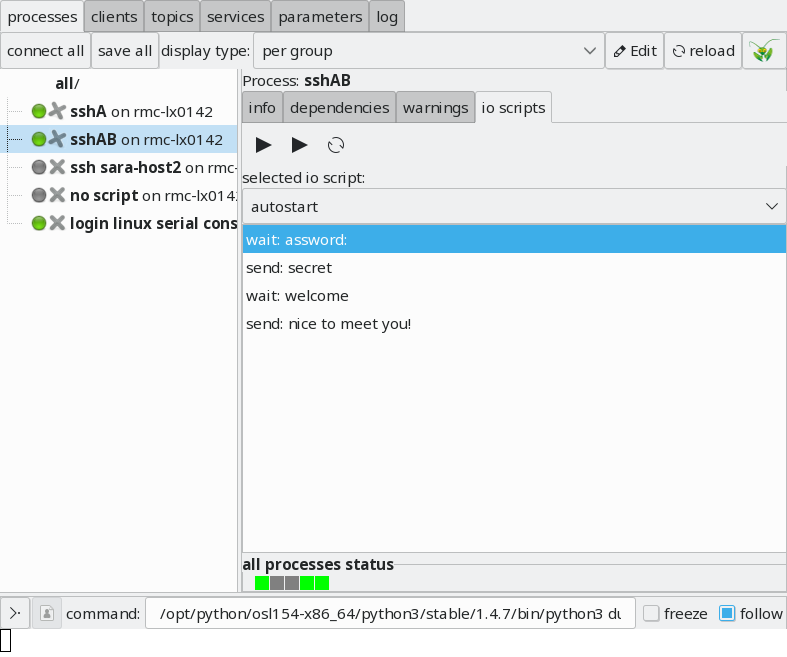
the left-most “play” tool-button can be used to start & stop running of scripts. the next “play” tool-button can be used to only execute the currently selected script-line (you can also just double-click on a script line for this). the third tool-button can be used to restart an I/O script from the beginning.
I/O scripts can only be started when the corresponding process is in started / ready state. stopping a process also stops I/O scripts.
3.10.39. add_io_script_file
same as add_io_script but here the I/O script is read from the specified file:
process some process
...
add_io_script_file: %(CURDIR)/remoteHost_login
add_io_script_file: %(CURDIR)/remoteHost_setup_network
this will add two new scripts named remoteHost_login and remoteHost_setup_network` to this process.
contents of file remoteHost_login could look like this:
wait: password:
send: secret-password
per default the filename will be used to choose a unique script-name.
if you want to use a different script-name (especially useful if you want to
name it autostart), you can explicitly provide a script name before the
colon ::
process some process
...
add_io_script_file autostart: %(CURDIR)/remoteHost_login