4.1. Process Management
This section explains how to start the LN manager, and how to manage processes.
See also
If you wonder why we want to manage separate processes, see section What makes it difficult to set up distributed robotic systems?.
The first thing we do is to look at how to start the LN manager with a minimal configuration file.
4.1.1. Starting the LN manager with a minimal configuration
The ln_manager is the single central information storage within a running Links and Nodes instance. Every time a ln_client wants to use or provide a new service the ln_manager is needed. Without a running manager clients can not establish new ln-communication channels.
Each ln_client holds an opened TCP-connection to the ln_manager. As soon as this connection is closed the manager assumes that the client has gone away and removes/cleans-up all resources used by this client.
If needed, in an already running system, the manager can be restarted – all clients will automatically try to reconnect to the manager. But, as mentioned before, while the manager is stopped, all tries from ln_clients to publish or subscribe new services will fail with an error.
To start the ln_manager you always need to specify a config file.
Config files for the LN manager usually have the file name suffix
“.lnc”, and we will stick to that for clarity, although it is not
requires. The most simple config file can look like this
my_config.lnc:
instance
name: test_instance
manager: :54414
This defines the instance name to be test_instance and the manager will listen for client connections at TCP-port number 54414. You can freely choose this name and port-number. (see instance section).
See also
For a more detailed explanation on the instance name, see Starting LNM with an essential Configuration.
To start the ln_manager with this config file enter:
$ ln_manager -c my_config.lnc
A new, pretty empty window like this will be opened:
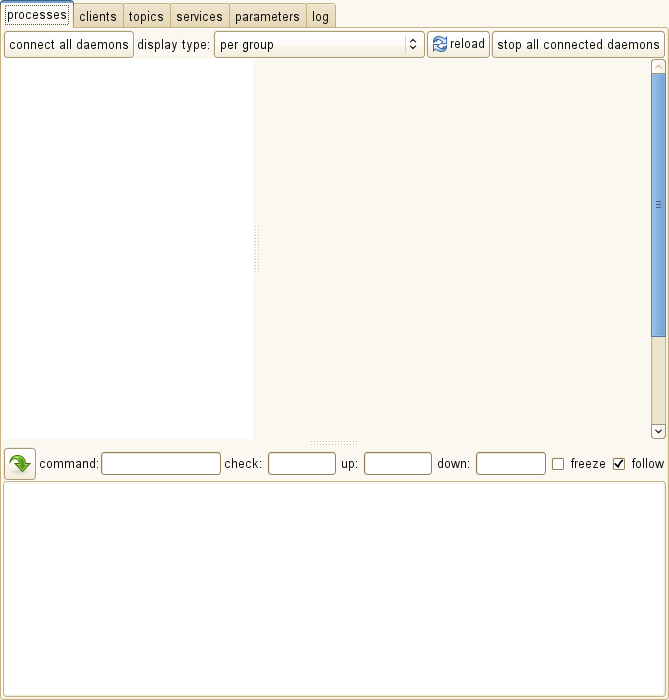
The empty LN manager window when started with a minimal configuration.
It has some button and UI elements which are there to control processes, but we do not have any processes yet.
The next thing we do is to add some processes, so that we can have a look at how to manage them.
4.1.2. Configuring processes and their dependencies
Create a new folder examples/quickstart/python/process_management/ and create a slightly larger
ln-manager config file examples/quickstart/python/process_management/process_management.lnc:
instance
name: first process manager example for %(env USER)@%(hostname)
manager: :%(get_port_from_string "%(instance_name)")

process top
command: /usr/bin/top
node: localhost

process watch date
depends_on: top
command: /usr/bin/watch /bin/date
node: localhost
This configuration file has three sections, one “instance” section and two “process” sections:
The instance section configures the LN Manager instance as in the preceding section.
We can see that it also defines an instance name. Here, it uses an expression to derive the name. The expression
%(env
USER)@%(hostname)
replaces the text with a string which consists out of the user name followed by the host name. The user name is retrieved from the environment variableUSER, and the host name is retrieved by a special function.This definition achieves that, when several LN instances are running on the same computer, each instance has a unique name. Why is this important? Because each instance starts and manages processes, and if we start and stop processes, we need to keep track of which process belongs to which instance. As the identifier to distinguish the instances and what belongs to them, the instance name is used. Therefore, the instance names always need to be different.
Also, in this example, a port number is set which is derived from the instance name, such that a different name results in a different port number. This will ensure that we have no conflicts in port numbers if we happen to run more than one LN instance on the same host.
The second section is a process section which starts a process named “top” (which is a standard Linux program used to display and monitor processes, we have chosen it for convenience so that we do not need to write a program which we can start).
The process section has three definitions:
the name of the process
the command which starts the process
the node on which the process shall be started. In this case, we use the node name “localhost”, which is an name defined by default for the computer which a program is running on. If we were to change the node name to the name of a different networked host, the process would run on that host, without any change.
See also
For more information on how to configure processes, you can look at the process section section of the configuration reference.
Also, starting process on remote computers uses a special command, called the LN daemon. Normally, it starts automatically, but if you have any difficulty, please refer to section The LN Daemon in the user guide part.
The third entry starts the command
watch, which displays the output of thedatacommand every second. The configuration has a keydepends on, with the valuetop. This means that on start-up, thetopcommand will be started first, and thewatchcommand will only be started after the first command was started successfully.
4.1.3. Managing Processes
Now, start the ln_manager with our new configuration like this
ln_manager -c quickstart/python/process_management/process_management.lnc
The manager will open its GUI as shown below:
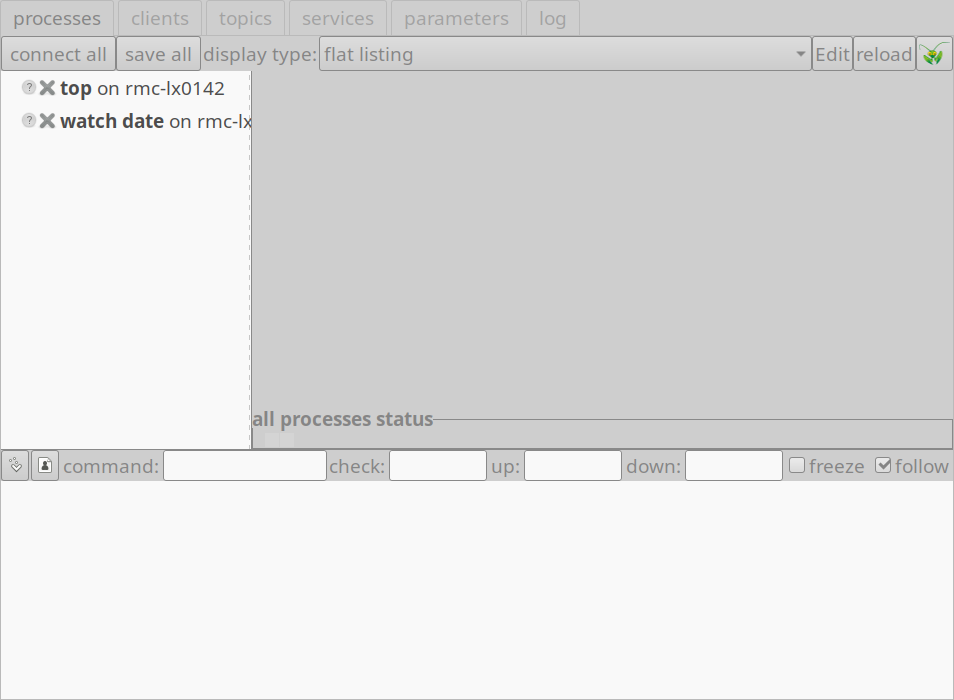
The LN manager with the two processes “top” and “date”.
What you see now is the LN Manager main window with three panes. One pane is in the bottom half. It shows output of processes.
In this moment, it shows nothing, because no process is selected and active. The top half is split vertically into two further panes, the process pane at the left, and the process control pane at the right side. The process control pane shows a number of ways to influence processes. The process pane shows a list of the defined processes. As we have defined two processes, we see two entries, “top” and “watch date”.
4.1.4. Starting and Stopping Processes in the LN manager GUI
Now, select the watch date process in the left pane with a single
click with the mouse, and click the “start” button in the right pane
(the button without a label with the green LED icon).
both processes should now start and display a green “LED” to the left of their name as shown below:
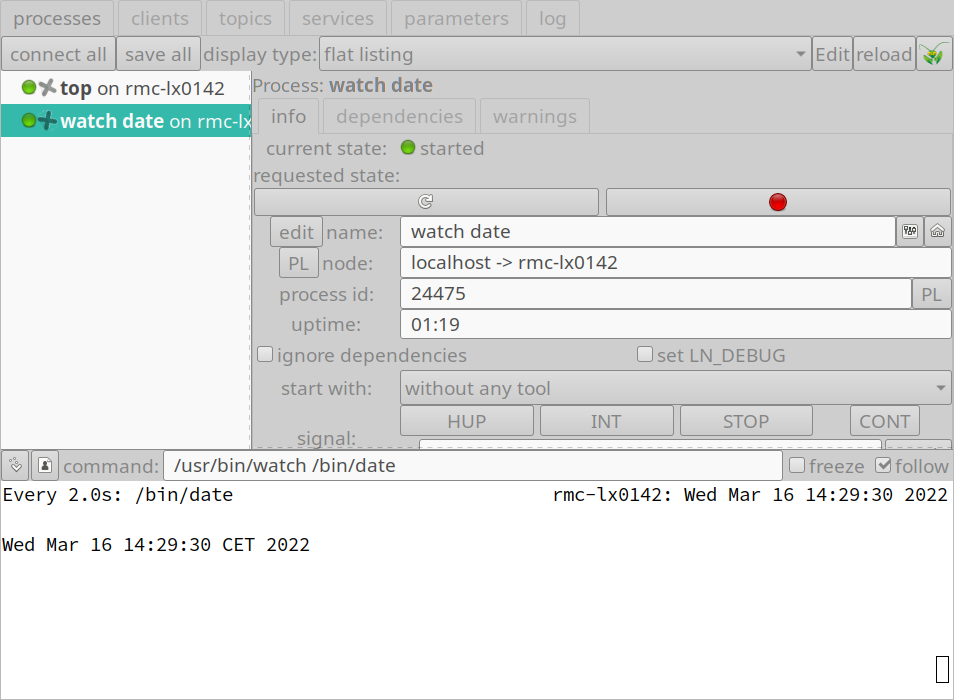
The LN manager window after the processes have been started.
There are a few more changes:
The bottom panel now shows the output of the
watch datecommand, because this is the command that we had selected. It shows every second the current date.We can also click the
topprocess in the left pane, and see the output of thetopcommand. Because the bottom pane is a fully functional terminal, we can also pass the top command keyboard input, for example selecting the sort order by memory by pressing the key “M”.In the right panel, the green LED button has changed its indication to a “restart” symbol (”⟳”). Now, when we press this button, the process will stop and start again.
The button right from the “restart” button has now a red LED, when pressed, it will stop the process.
The LN Manager takes the start-up dependencies into account when starting processes. This means, when it tries to start the “watch date” process, it looks up its dependencies and knows that it needs to start the “top” process before. This kind of dependency is in force only for starting: When the “top” process is stopped, the “watch date” process will continue to run.
See also
You can look at section process section at entry types like “depends_on”, “depends_on_restart”, or “start_on_ready” to find further ways to manage dependencies.
To stop all these processes, we press each red LED button, and close the LN Manager window. When we try to close it and processes are still running, the LN Manager will ask whether we want the processes to continue running.
However, in order to have the processes working together, they need to communicate and exchange information each other. The next section will show how this is done.